E-Invoicing for Shopware 5
-
 Creates human-readable e-invoices in the hybrid ZUGFeRD format
-
Facilitates invoice import into accounting software for you and your customers
-
Compliant with German and EU standards
-
Supports intra-community supplies, net invoices and various payment methods
-
Validates conformity with integrated KoSIT validation
Request a trial version
How it works
The plugin integrates into the Shopware document creation process and generates a ZUGFeRD 2 PDF in the XRechnung profile from the invoice PDF generated by Shopware.
The plugin uses the Codebarista E-Invoicing Service: the required data is collected in the plugin, transferred to the E-Invoicing Service, processed there, and the resulting e-invoice PDF is then returned to your shop.
By using the Plugin, you accept our terms of use and privacy policy for the Codebarista E-Invoicing Service.
Administration
Configuration
Changes to the settings do not affect already created invoices. You must recreate documents for the changed settings to take effect.
The plugin uses information from the order, shop settings, and plugin settings to create the e-invoice.
To adjust the plugin settings, click on Basic Settings under Settings in the main navigation, then select E-Invoice under Additional Settings.
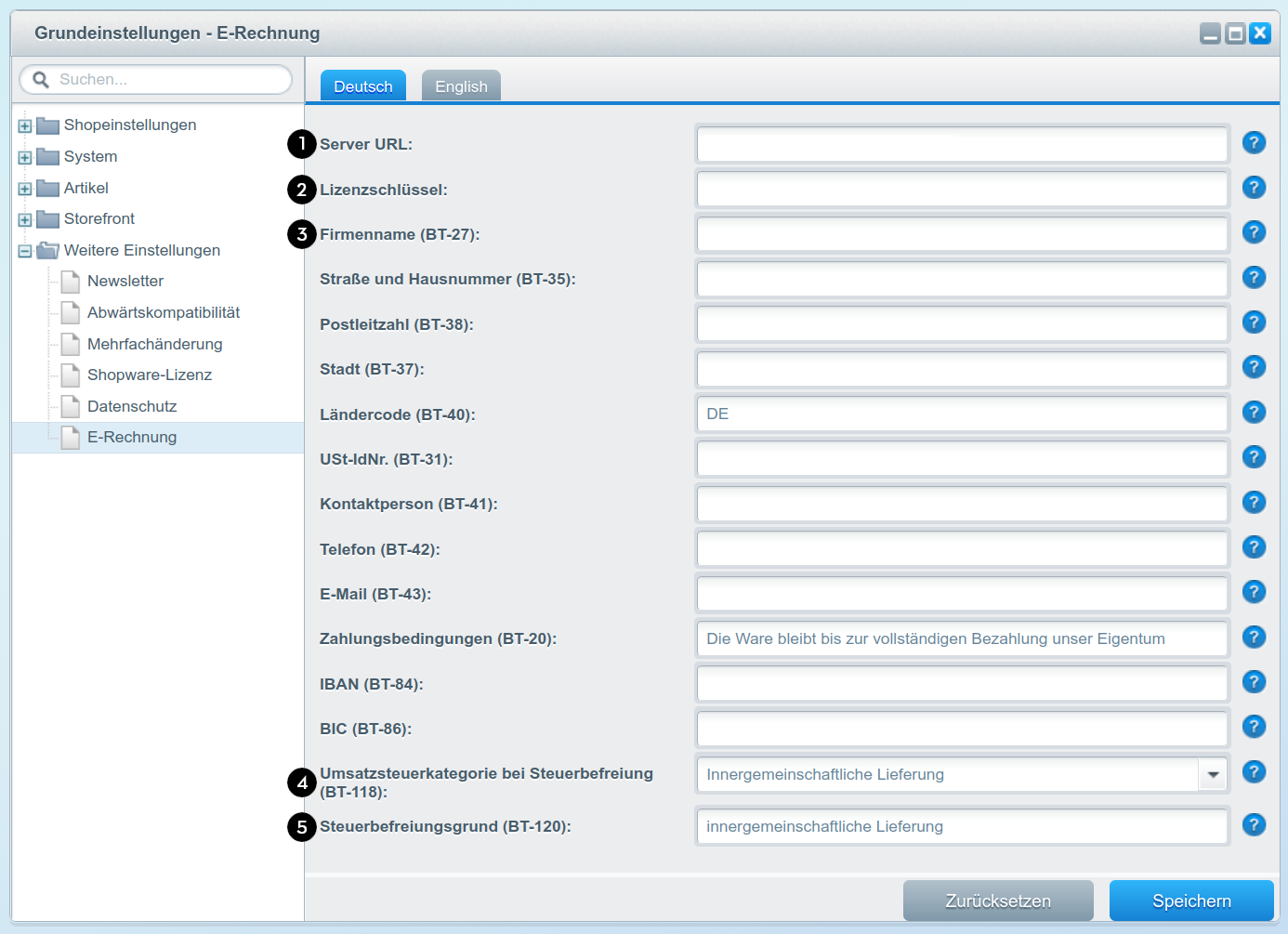
Together with the plugin you received a Server URL (1) and your personalised License Key (2). Enter both pieces of information in the corresponding fields.
The Company Name (3) must match the name you provided us for generating the license key.
If the company name entered does not match the company name provided to us for generating the license key, no e-invoices can be created. In that case, please get in touch with us.
Please also fill in the remaining fields. Additional information is available via the help icon next to each input field.
If you mark an invoice as tax-exempt, a Tax Exemption Category (4) and a Reason (5) for the exemption must be provided. Both settings can be configured here.
You can specify for which of your document types e-invoices should be created. To do this, assign your document types to the corresponding e-invoice types (6.1, 6.2, 6.3). Multiple selections are possible.
Notes on VAT Categories
For e-invoices related to intra-community supplies, tax category K is specified (VAT exemption for intra-community supplies of goods and services within the EEA). The reason for the tax exemption must be (at minimum) intra-community supply.
For e-invoices with Reverse Charge, tax category AE is specified. The reason for the tax exemption must be (at minimum) reverse charge.
If the e-invoice is tax-exempt, tax category E is specified in the e-invoice (no VAT declared). A VAT exemption reason must be provided as justification.
Create E-Invoice
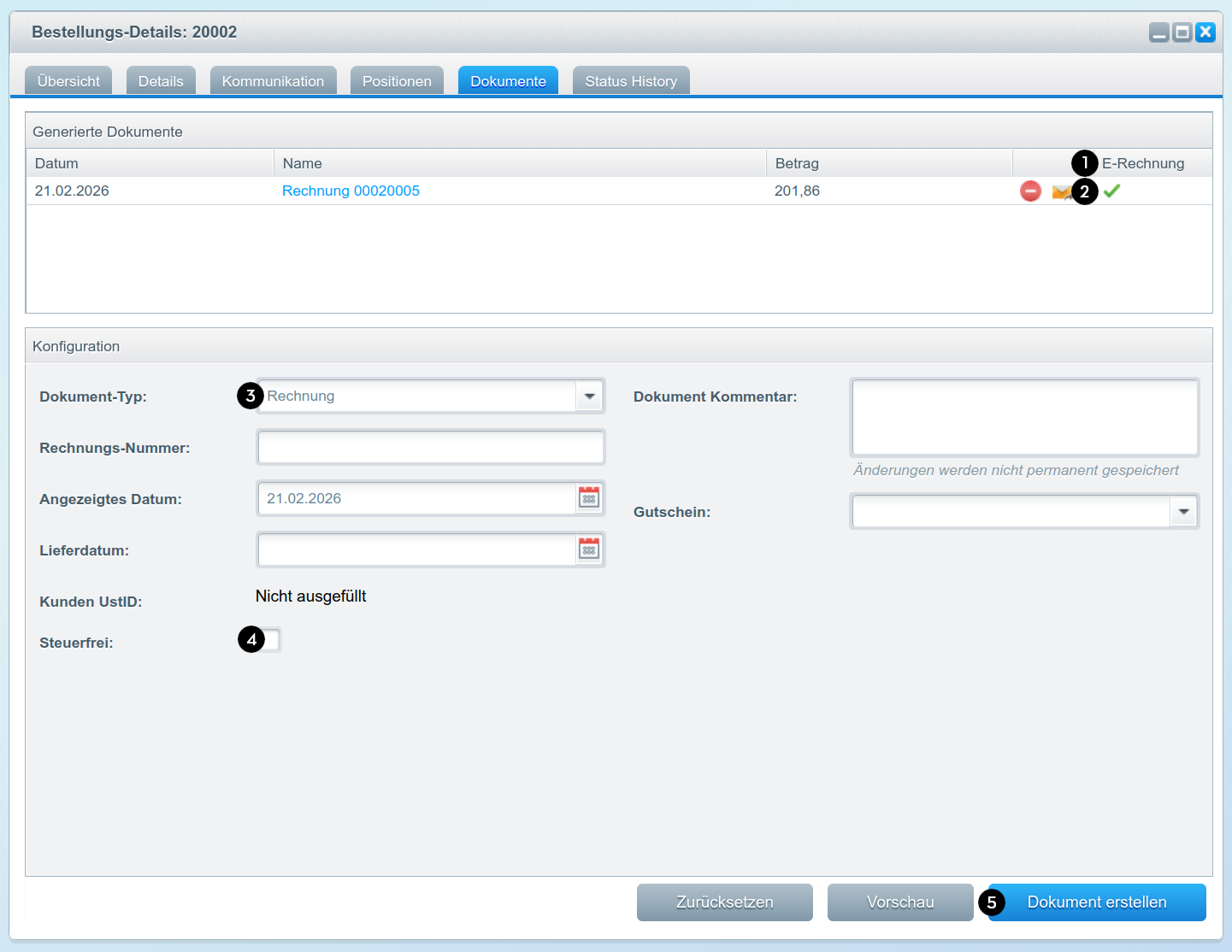
To create an e-invoice, select Orders under Customers in the main navigation. Open the desired order and switch to the Documents tab. Select the desired configuration and click Create Document (5).
E-invoices are created for the Document Types (3) invoice, cancellation invoice, and credit note. If you mark an invoice as Tax-Exempt (4), the tax exemption category and reason configured in the plugin settings will be included in the e-invoice.
Each created e-invoice is validated for compliance with the XRechnung standard using the KoSIT Validator.
The E-Invoice (1) column in the Generated Documents table shows whether an e-invoice could be created, whether it is valid, or whether errors occurred. For document types for which no e-invoices are created, the column remains empty and shows no icon.
A green checkmark (2) means that a valid e-invoice was successfully created.

A blue checkmark (1) means a valid e-invoice was created, but warnings are present. Click the icon to open a window with detailed information.
Warnings should not cause the e-invoice to be rejected by the recipient. However, they indicate possible misconfigurations: check your plugin and shop settings, for example.
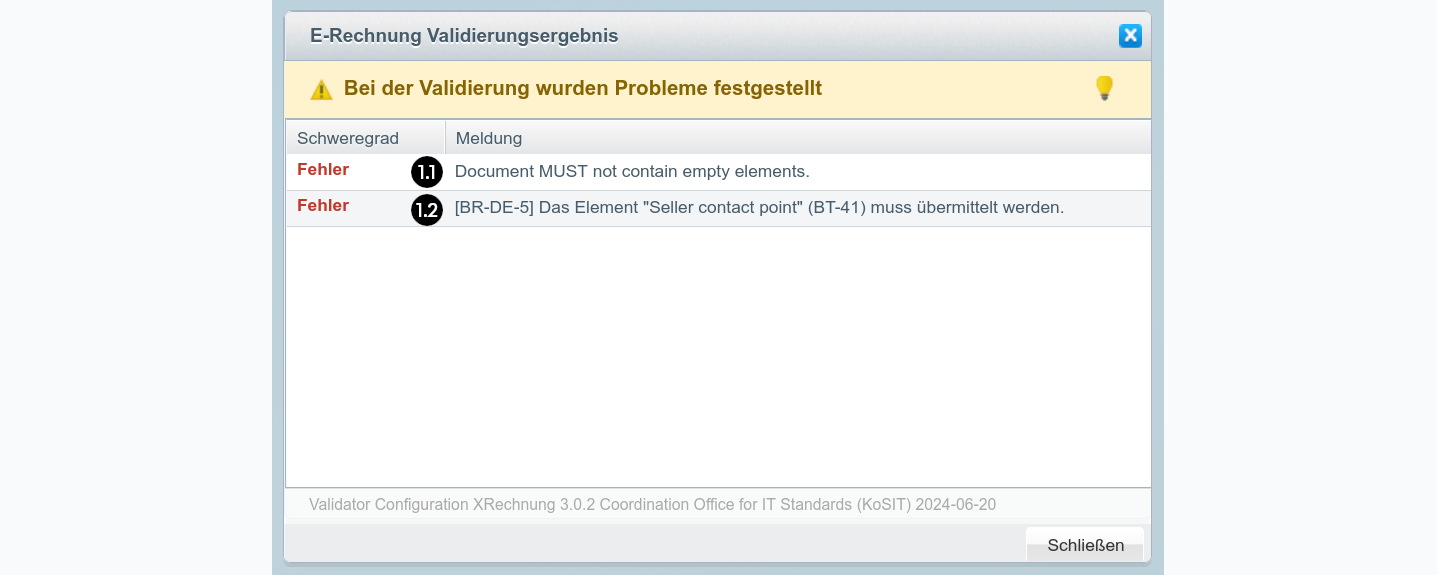
The validation results (1.1, 1.2) come directly from the KoSIT Validator and may, depending on the issue, appear in German.

A yellow warning triangle (1) indicates an invalid e-invoice. Click the icon to open the window with detailed information.

If a critical error occurs, it is indicated by a red X (1). In this case, no e-invoice could be created. Click the icon to open the window with detailed information.
Batch Processing
E-invoices are also created for the configured document types during batch processing.
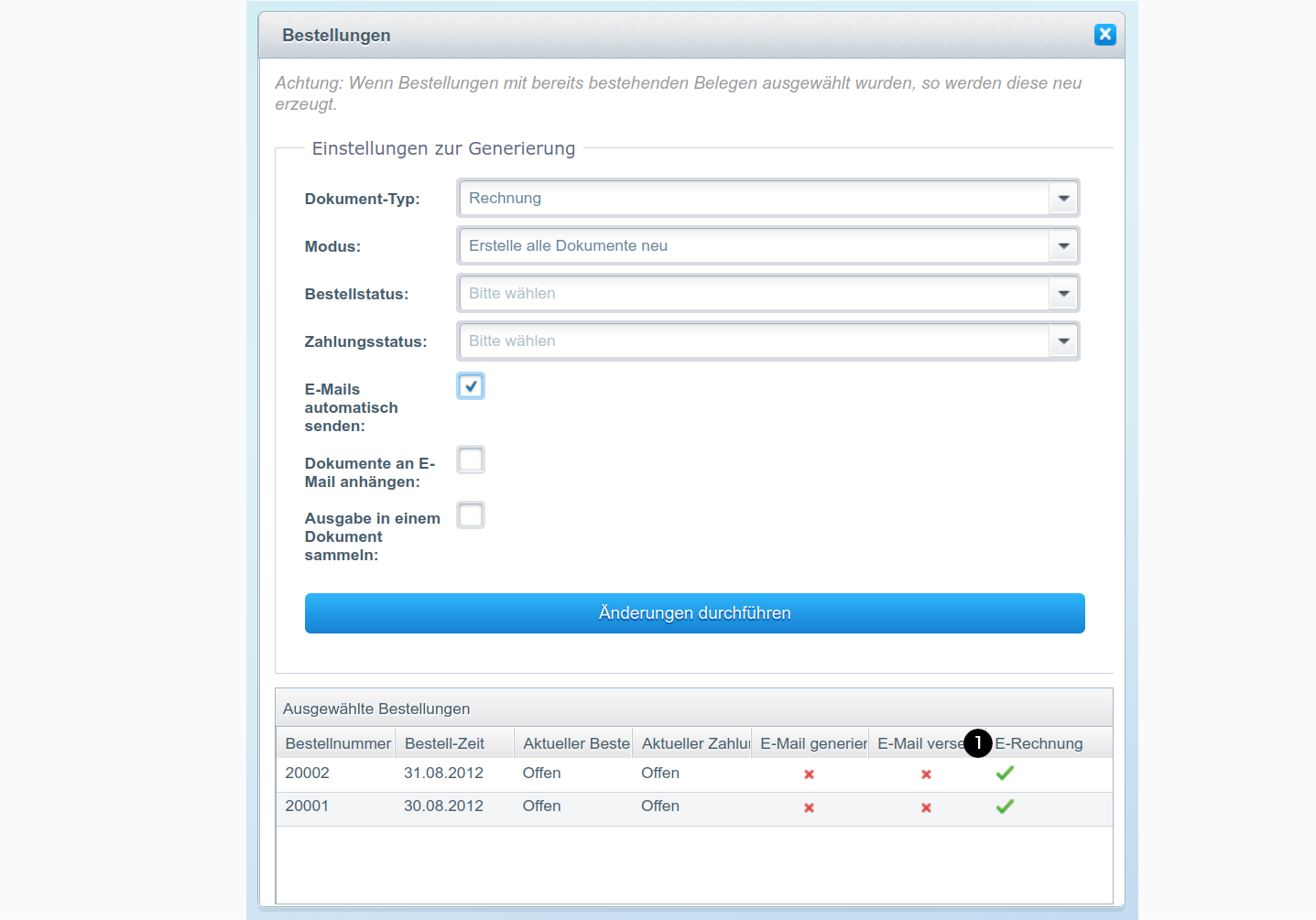
The new E-Invoice (1) column shows after batch processing is complete whether each e-invoice is valid. The same icons are used as when creating documents on the Documents tab (see Create E-Invoice above for details).
Roadmap
Change Requests
The functionality does not cover your use case? Do you have comments or questions? Write to us! We are happy to develop the plugin further with you.
Version History
| Version | Date | Changes |
|---|---|---|
| 1.0.0 | 2026-02-23 | Initial version for Shopware 5 |